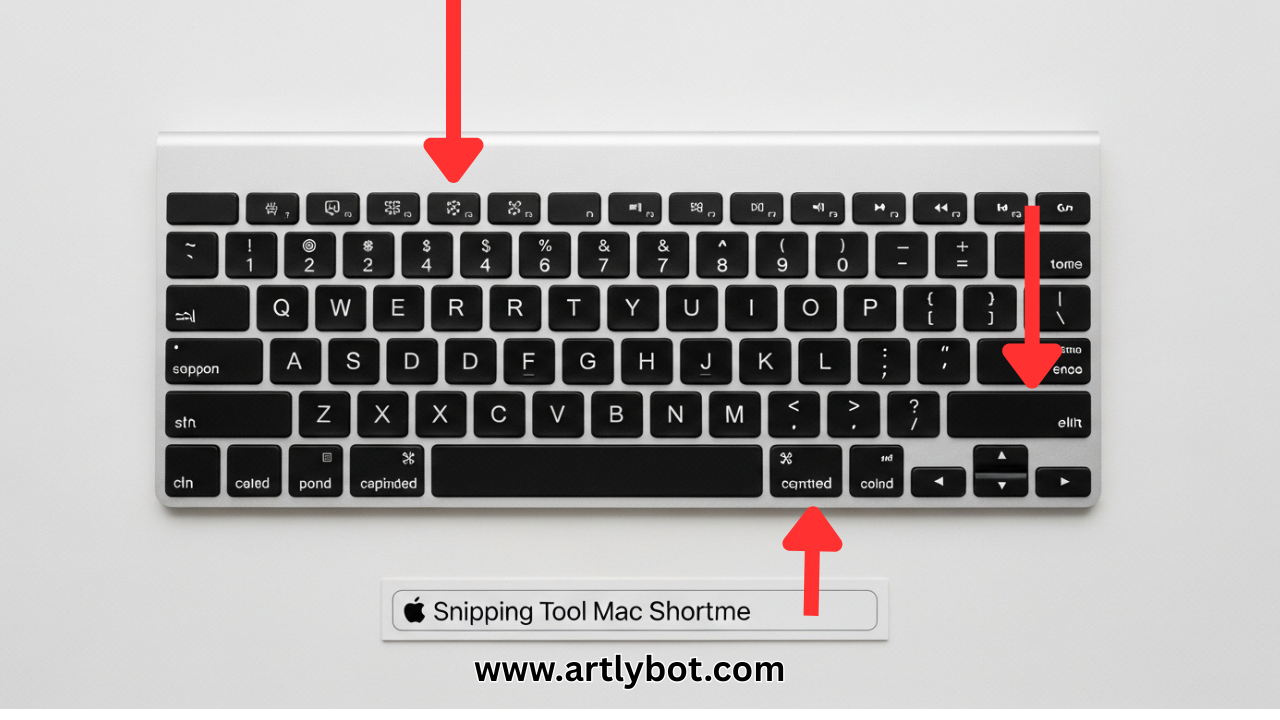
If you’re searching for snipping tool mac options, you should know that macOS doesn’t have a native tool called “Snipping Tool” like Windows does — but it does have powerful built‑in screenshot and screen capture features that act as a snipping tool equivalent.
Built‑In “Snipping Tool Mac” Features (No Download Needed)
Apple’s macOS includes a Screenshot app — the closest thing to a snipping tool mac out of the box. You can access it using keyboard shortcuts:
-
Capture Entire Screen:
Command + Shift + 3 -
Capture Selected Area:
Command + Shift + 4(crosshair appears, drag to select) -
Capture Specific Window:
Command + Shift + 4, then press Space to toggle camera mode and click a window.
These shortcuts let you snip exactly what you want without third‑party apps. If you want even more control (like a toolbar with options), press Command + Shift + 5 — this opens the Screenshot Toolbar where you can choose capture types, set a timer, pick save locations, even start screen recordings.
Pro Tips for Mac Screenshot Control
• Save to Clipboard: Hold Control with any shortcut — the snip goes straight to clipboard for instant pasting.
• Change Save Location: In the Screenshot Toolbar (Cmd + Shift + 5), click Options and choose Desktop, Documents, Clipboard or a folder.
• Annotate Quickly: After taking a snip, a thumbnail appears in the corner. Tap it to crop, draw, highlight, or sign.
Best Third‑Party Snipping Tool Mac Alternatives (2026)
If you want more than the built‑in tools — like advanced editing, OCR, scrolling capture, or cloud sharing — these apps enhance your snipping game:
-
CleanShot X: All‑in‑one screen capture with cloud sharing, timers, and advanced tools.
-
Shottr: Free and lightweight with scrolling capture and basic annotations.
-
Snagit: A professional tool with text extraction and robust editing.
-
Xnapper: Easy annotation and smart templates for designers and pros.
-
Monosnap: Screenshot + recording with upload options.
These tools serve as full replacements or enhancements to your typical snipping tool mac experience, especially if you need features like scrolling screenshots, OCR, or cloud links.
Quick Summary
-
macOS does not have a “Snipping Tool” by name, but built‑in screenshot tools act just like one.
-
Shortcut keys (
Cmd + Shift + 3/4/5) let you snip entire screens, portions, or windows. -
Third‑party apps like CleanShot X and Shottr offer extra power for advanced snipping needs.
Learn about Snipping Tool Windows