Screenshots have become an essential part of our digital lives. Whether you’re sharing a funny meme, capturing important information from a website, or creating tutorial content, having the right tools at your fingertips can make all the difference. Enter the Snipping Tool—a user-friendly application built into Windows that allows you to capture and edit screenshots with ease. But did you know there are handy shortcut keys that can enhance your Snipping Tool experience? Let’s dive into this versatile tool and discover how using snipping tool shortcuts can streamline your screenshot game!
Benefits of using Snipping Tool
The Snipping Tool is a versatile utility that simplifies capturing screenshots on your Windows device. One of its key advantages is the ability to select specific areas of the screen, allowing for precision in what you capture.
Another benefit is its intuitive interface. Even those who aren’t tech-savvy can easily navigate it without hassle. This accessibility makes it ideal for quick tasks or more detailed projects alike.
Additionally, users can annotate their snips directly within the tool. Adding notes or highlights enhances communication and clarity when sharing information with others.
Seamless integration with other Microsoft applications further elevates its usefulness. You can quickly copy your snippets into programs like Word or PowerPoint, streamlining workflows significantly.
It’s a free tool that comes pre-installed on most versions of Windows, eliminating any need for additional software purchases.
How to access Snipping Tool on Windows
Accessing the Snipping Tool on Windows is simple and straightforward. Start by clicking on the Start menu located at the bottom-left corner of your screen.
In the search bar, type “Snipping Tool” or just “snip.” The application should pop up in the results almost instantly. Click on it to launch.
For quicker access, you can pin it to your taskbar. Right-click on its icon once it’s open and select “Pin to taskbar.” This allows you to reach it effortlessly whenever needed.
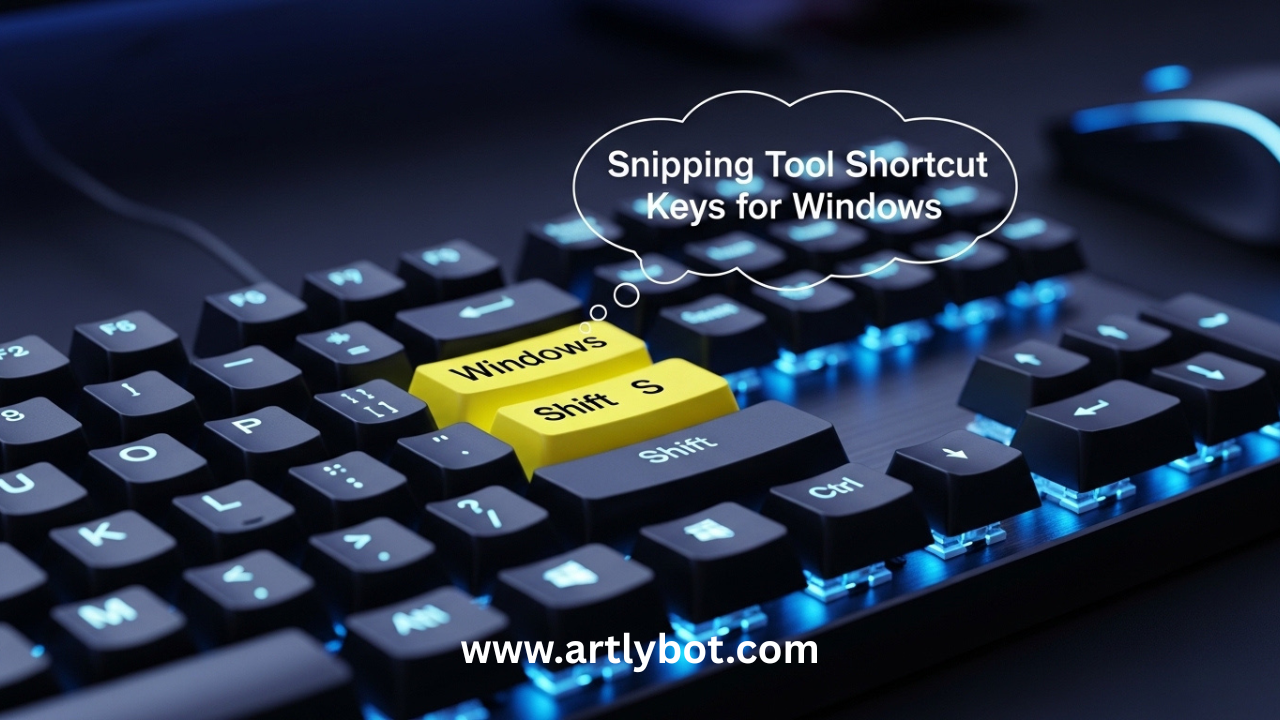
Alternatively, if you’re using Windows 10 or later, you might find that Snip & Sketch has replaced traditional options. Press Win + Shift + S for an instant snip without searching through menus.
Explore these methods to easily capture what’s important on your screen with minimal hassle!
Different types of snips available
The Snipping Tool offers four primary types of snips to cater to various needs. Each type has its unique advantages, making it versatile for users.
The Free-form Snip allows you to draw any shape around the area you wish to capture. This is perfect for highlighting specific parts of a webpage or document.
Next up is the Rectangular Snip. With this option, you can click and drag your cursor in a rectangular fashion over the desired section. It’s great for capturing neat, organized screenshots.
For those who need quick captures, the Window Snip lets you select an open window with just a click. It saves time by eliminating extra steps.
There’s the Full-screen Snip which takes a screenshot of your entire display. This is especially handy when documenting multiple applications or presentations at once.
Snipping Tool shortcut keys for capturing screenshots
Using shortcut keys to access the Snipping Tool can significantly speed up your screenshot process. Windows offers several handy combinations that make capturing images quick and efficient.
To start a new snip instantly, press **Windows + Shift + S**. This opens the snipping toolbar at the top of your screen, allowing you to choose between rectangular, freeform, window, or full-screen captures.
If you’re looking for simplicity, just hitting **PrtScn** saves a screenshot of your entire screen directly to your clipboard. From there, you can paste it into any application by pressing **Ctrl + V**.
For those who prefer flexibility in their workflow, customizing these shortcuts is an option too. Knowing these key combinations transforms how quickly you can gather visual information without breaking your stride during tasks.
Additional features and settings
The Snipping Tool offers more than just basic screenshot capabilities. One notable feature is the ability to annotate your snips. You can add text, highlight areas, or even draw directly on the image before saving it.
Another useful setting allows you to choose a delay for capturing screenshots. This means you can set a timer of up to five seconds, giving you time to prepare any open menus or tooltips that need capturing.
You also have options for file formats when saving your snips. Choose between PNG and JPEG based on your quality needs and file size preferences.
Don’t forget about the clipboard functionality. Any snip taken automatically copies itself there, making it easy to paste into documents or emails without needing extra steps.
Tips for using Snipping Tool effectively
To maximize your experience with the Snipping Tool, familiarize yourself with its features. Use the delay option for capturing pop-up menus or tooltips that disappear quickly.
Organize your screenshots by using descriptive filenames as you save them. This will make it easier to find specific images later on.
Experiment with different snip types based on your needs. Free-form and rectangular snips can capture irregular shapes or sections of content more neatly than a standard rectangle.
If you’re sharing snips frequently, consider integrating them into emails or documents right away. You can use the copy feature to paste directly without needing to save first.
Practice regularly. The more you use the Snipping Tool, the quicker you’ll become at navigating its options and utilizing shortcut keys efficiently.
Comparing Snipping Tool with other screenshot tools
When it comes to screenshot tools, the Snipping Tool offers a unique blend of simplicity and functionality. It is specifically designed for Windows users who need quick access to basic screen capture features without overwhelming complexity.
Comparatively, other popular options like Greenshot or Snagit provide advanced editing capabilities and additional functionalities such as cloud sharing and annotation tools. These can be great choices if you require more robust features for professional work.
However, while these alternatives may offer extensive customization options, they can also come with a steeper learning curve or even cost associated with premium versions. The Snipping Tool remains an excellent choice for everyday tasks where easy accessibility and efficiency are key.
Your best choice will depend on your specific needs—whether you prefer the straightforward approach of the Snipping Tool or the richer feature sets found in other software solutions. Embracing what works best for you will enhance your productivity greatly when capturing important information from your screen.